Guide
Editing your real estate photos with Kadra
Last updated:
Getting started
Kadra improves your listing photos without ever changing the property’s layout, and proves it on every render.
Kadra is real estate photo retouching software, built for three profiles: the independent agent, the agency centralizing several mandates, and the high-volume network. Its promise doesn’t stop at "nicer photos": every render is compared to the original photo, to verify that the property itself hasn’t changed.
The application is available today on the web, from a computer or a phone. Android and iOS apps are coming soon.
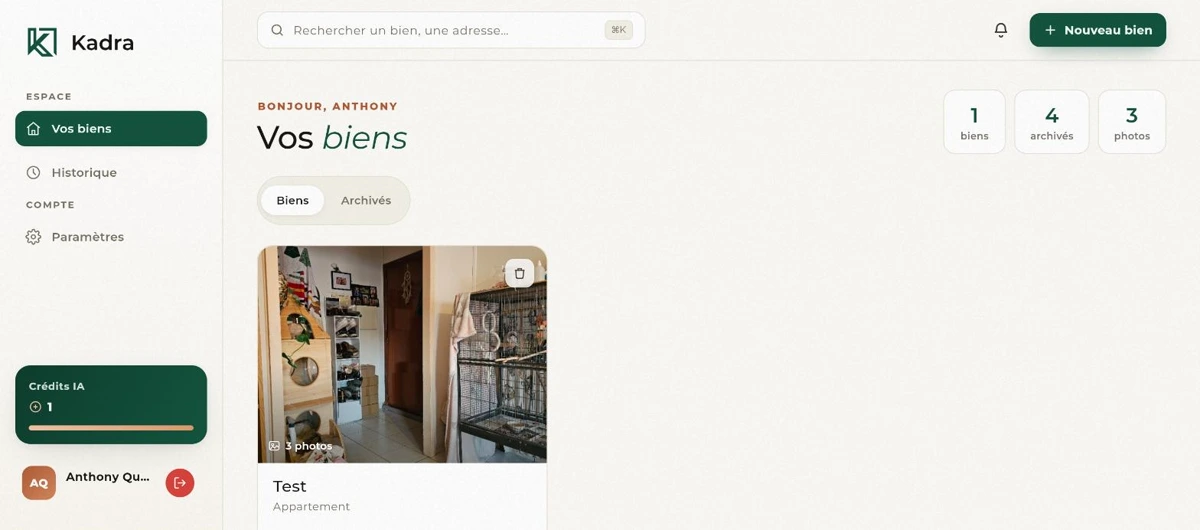
Create a property and import your photos
A folder per mandate, photos sorted by room.
In Kadra, a property is a mandate’s folder: the photos you import into it are sorted by room, from your phone or your computer. They’re automatically converted to WebP on import.
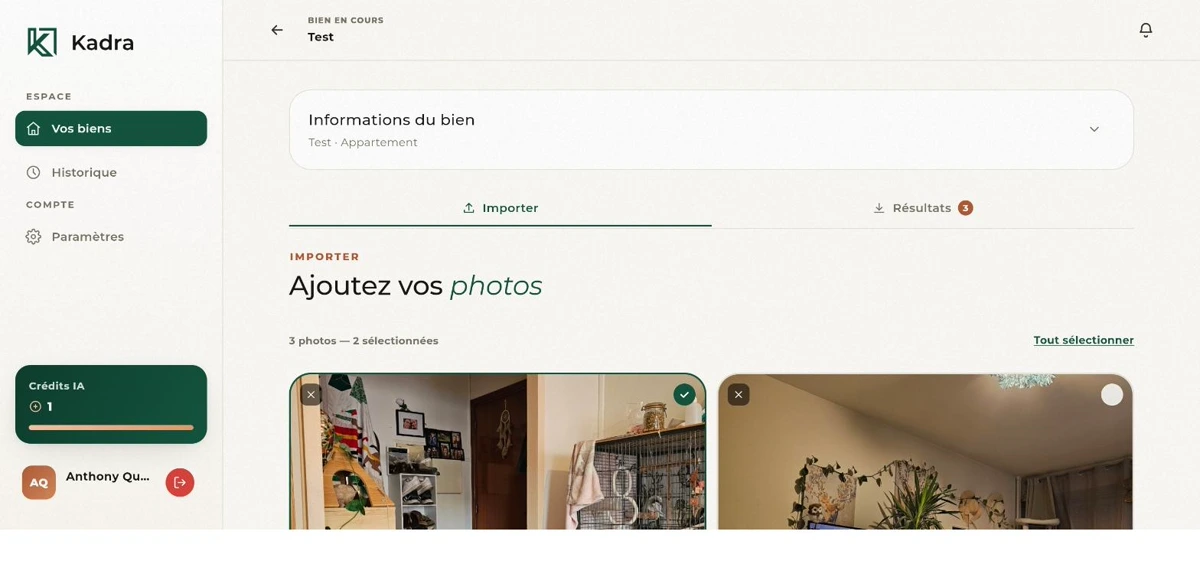
Every property keeps the history of its imports and its renders: you can come back to it later without re-importing the original photos.
Automatic analysis of the property
Kadra determines on its own which modes each photo can receive.
Once the photos are imported, Kadra analyzes them to determine which modes each one can receive, at no credit cost at this stage. The analysis covers the scene (interior or exterior), the property’s apparent condition, and whether a room is empty or furnished.
It’s this analysis, more than the choice of a mode, that determines the quality of a render: no virtual staging offered on an already-furnished room, no facade renovation projected on a facade that’s simply dirty. Only the modes relevant to the photo are offered.
Choose a mode and launch the generation
One credit per delivered photo, never per attempt.
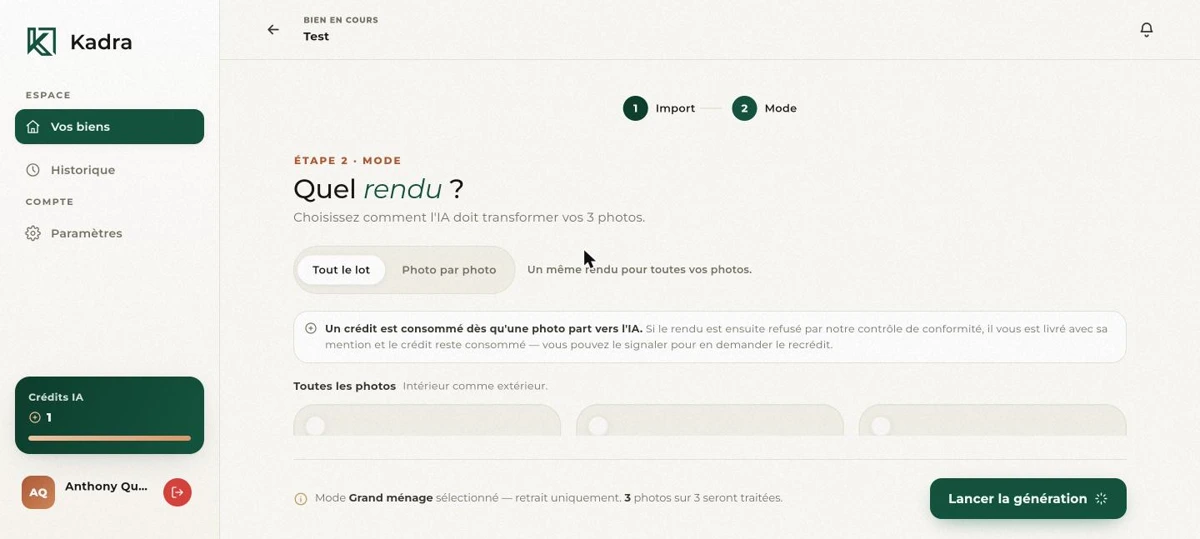
For each photo, you choose among the modes the analysis has left open, then you launch the generation. It’s this step, and this step alone, that uses a credit: one per photo actually delivered, never per launch attempt.
Kadra offers eleven modes in total, from a simple light pass to a renovation projection. The detail of each, with a before/after, is shown on the home page: see the eleven modes.
Compare and download your results
Every render stays compared to the original, and available in the property.
A delivered render appears next to the original photo, with a slider to compare the two. You only download what you decide to keep: the other renders stay available in the property’s history, with no need to choose right away.
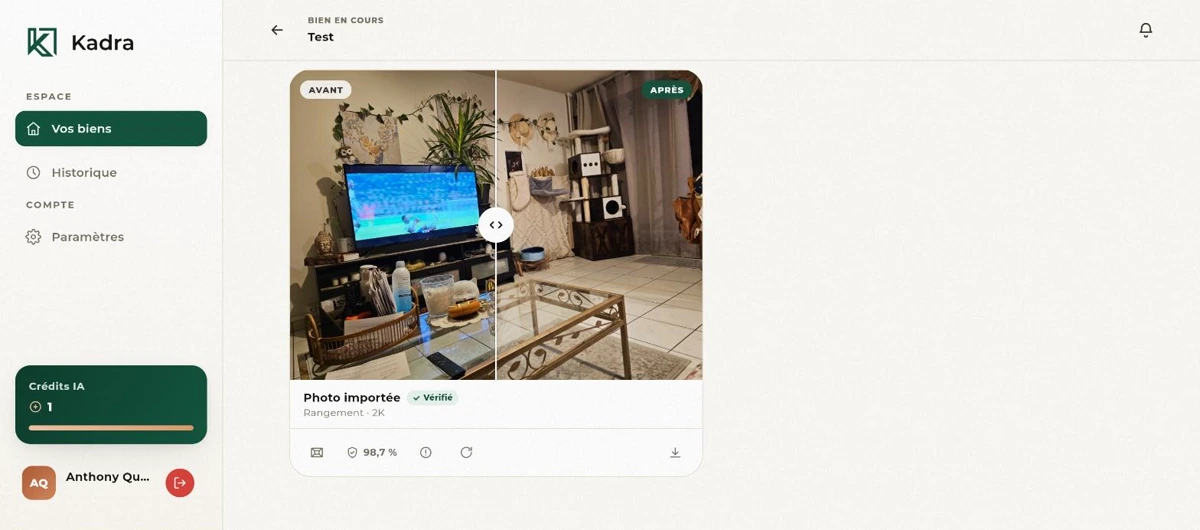
If a result doesn’t suit you, you can relaunch the treatment, in a different mode if you’d like.
Proof of fidelity to the property
Two checks, and an embedded notice when a render shows something other than the property’s current state.
Every render goes through two checks before being delivered: a geometric verification, systematic and deterministic, that measures several structural landmarks of the image (frames, junctions, lines that must not move); and a verification by a second model, not yet applied to the whole catalog of modes. The principle of this check (the building’s edges found unchanged between the before and the after) is illustrated on the home page: see the diagram.
A “non-compliant” render is not refunded automatically. If it fails the check, it’s still delivered (always with an embedded notice) and uses the corresponding credit. Only a technical failure (the render couldn’t be produced) triggers an automatic refund. A render delivered as compliant but that still seems to you to depart from the property can be reported: a manual review then decides, case by case, on a refund.
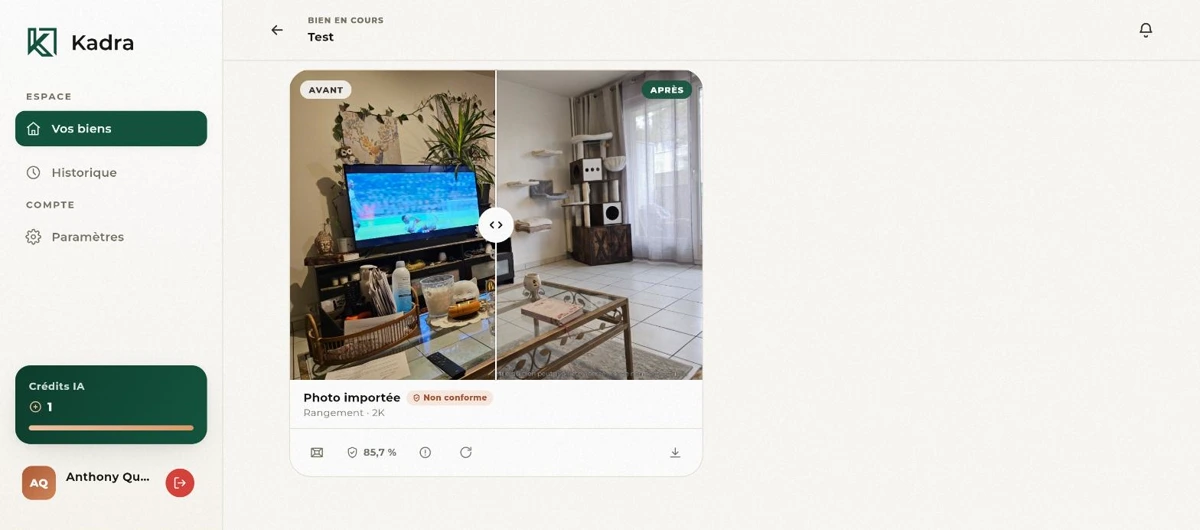
The engine writes its notices in French: it's what's literally embedded in the delivered image, so that's the wording shown here too. A rejected render is never delivered without a notice. If it comes from a mode that doesn't usually carry one, it gets the general notice, word for word:
Image retouchée par intelligence artificielle – non contractuelle
Modes that show something other than the property’s current state (virtual staging, renovation projection, dusk mood, garden layout) embed their own notice in the delivered file, also in French, whether or not the render passes the check. Two examples, word for word:
Aménagement virtuel par IA – mobilier non inclus, image non contractuelle
Projection par IA – travaux non réalisés, image non contractuelle
Subscription and pricing
Three plans, a trial with no card, credits that roll over.
- Mandataire: €39/month, 60 photos
- Agence: €99/month, 180 photos
- Réseau: €249/month, 500 photos
Photos unused at the end of the month roll over to the next month, up to one month. The full detail of the three plans, with online subscription, is on the home page: join the waitlist.
Waitlist: 5 free credits (watermarked photos) and the founder rate for the first 100 subscribers.
Frequently asked questions
Is a render rejected by the fidelity check still delivered to me?
Yes. A "non-compliant" render is delivered, flagged as such in the app, and always carries an embedded notice: its mode’s notice if the mode has one, otherwise the general AI notice. It uses the corresponding credit: only a technical failure (the render couldn’t be produced) is refunded automatically.
A delivered render still seems to me to depart from the real property: what should I do?
Report it. A render that slips past both checks remains possible: reporting it triggers a manual review, and a refund decided case by case.
How does credit rollover work?
Photos unused at the end of the month roll over to the next month, up to one month.
Can I use Kadra from my phone?
The web application works today, from a phone as well as a computer. Android and iOS apps are coming soon.
Can an agency with several agents share a single account?
That’s exactly what the Agence plan is for: several agents’ mandates are grouped in the same software, with the same retouching framework for the whole team.
A question about this guide? admin@kadra-app.com